

Start with a reviewed assessment
You need access to the saved assessment and the inputs required for its outputs. The Passport carries assessment reasoning into a decision setting. It is not a certificate, approval or an automatically completed institutional action
Have the audience and decision question in mind. For the illustrative communication project, the purpose might be to identify evidence and support conditions for a further review, rather than assert that the system is suitable for a particular person
Prepare the handoff in five steps
Confirm the selected assessment
Check the project name, context and saved information before opening the output. Read Project Briefing and resolve material errors in the source record. Confirm that the intended application is the one for which evidence was entered
Open the report preview and Passport controls
In Decision Surface, find Evidence, report preview, and BCI Passport export. Choose Summary, Scorecard Report, Board Slide or Follow-up Plan to open the preview. Use its tabs to review each deliverable. These controls require complete required inputs and available risk and benefit scores; the descriptive Project Briefing alone does not unlock a Passport
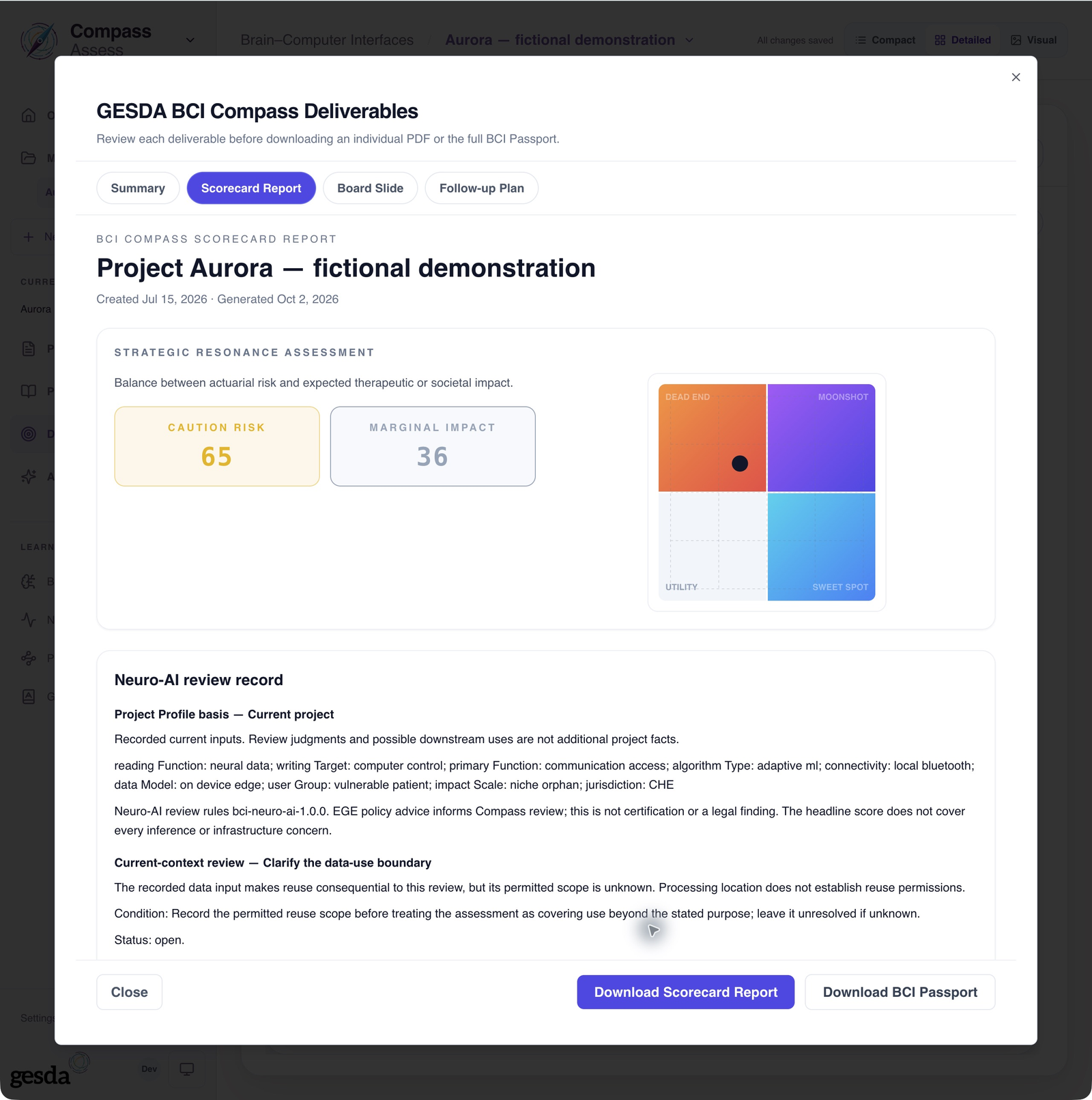
Local documentation capture, 2 October 2026. Fictional Aurora demonstration: inputs, evidence and outputs are illustrative. A visible preview does not demonstrate a completed export or approval. Check what the reader will receive
Read the scope, evidence, assumptions, uncertainty and supporting sections. Keep safeguards and open questions close to the result they qualify. In Assess settings, My report defaults controls the relevant preview and PDF options; organization requirements take precedence over personal defaults
Download and inspect the PDF
In the preview, choose Download Summary or the corresponding button for the selected section, or Download BCI Passport for the full output. Open the resulting file and check that it is readable, belongs to the correct project and includes the reasoning needed for the decision. If the control is unavailable, check input completeness and model scope rather than assuming an export has occurred
Attach the human decision context
Carry the assessment date, decision question, conditions and follow-up responsibilities with the exported record. Record any institutional judgment and reassessment triggers in the process your organization uses. Do not imply that Compass has approved, notified or scheduled anything merely because those intentions appear in the discussion
Keep the output connected to its basis
The saved assessment may change after export. Retain the version you used for the decision and revisit it when evidence, intended use or important assumptions change. A new application requires its own evidence rather than inheriting validation from this Passport
For an independent review, use Review an existing assessment. For unresolved claims, return to Interpret evidence and uncertainty
About this guide edition
Reviewed 2 October 2026 against the current interface and maintained product guide. Screenshots show either the public GESDA catalogue or a local demonstration using fictional Aurora data, as identified in each caption
Local captures illustrate the interface, not sign-in, server persistence or successful export. Use Print / save PDF for a reading copy and follow the live application for current availability
Guide edition · 2 October 2026
Find a guide for your role