

Bring a particular project and its evidence
Sign in to Assess. Have a project name, purpose, intended users, input and output, plus source material for important claims. If an assessment already exists and you can access it, open that record rather than recreating it
Here the question becomes a particular proposed communication system, with identifiable people, context and evidence. The guide does not supply fictional performance values for you to enter
Develop the record in six steps
Create or deliberately reuse a record
Choose New assessment in My Assessments. If starting from a published case, use its explicit assessment action so the release reference is retained and checked. Inspect imported information as source material, with its gaps and dates
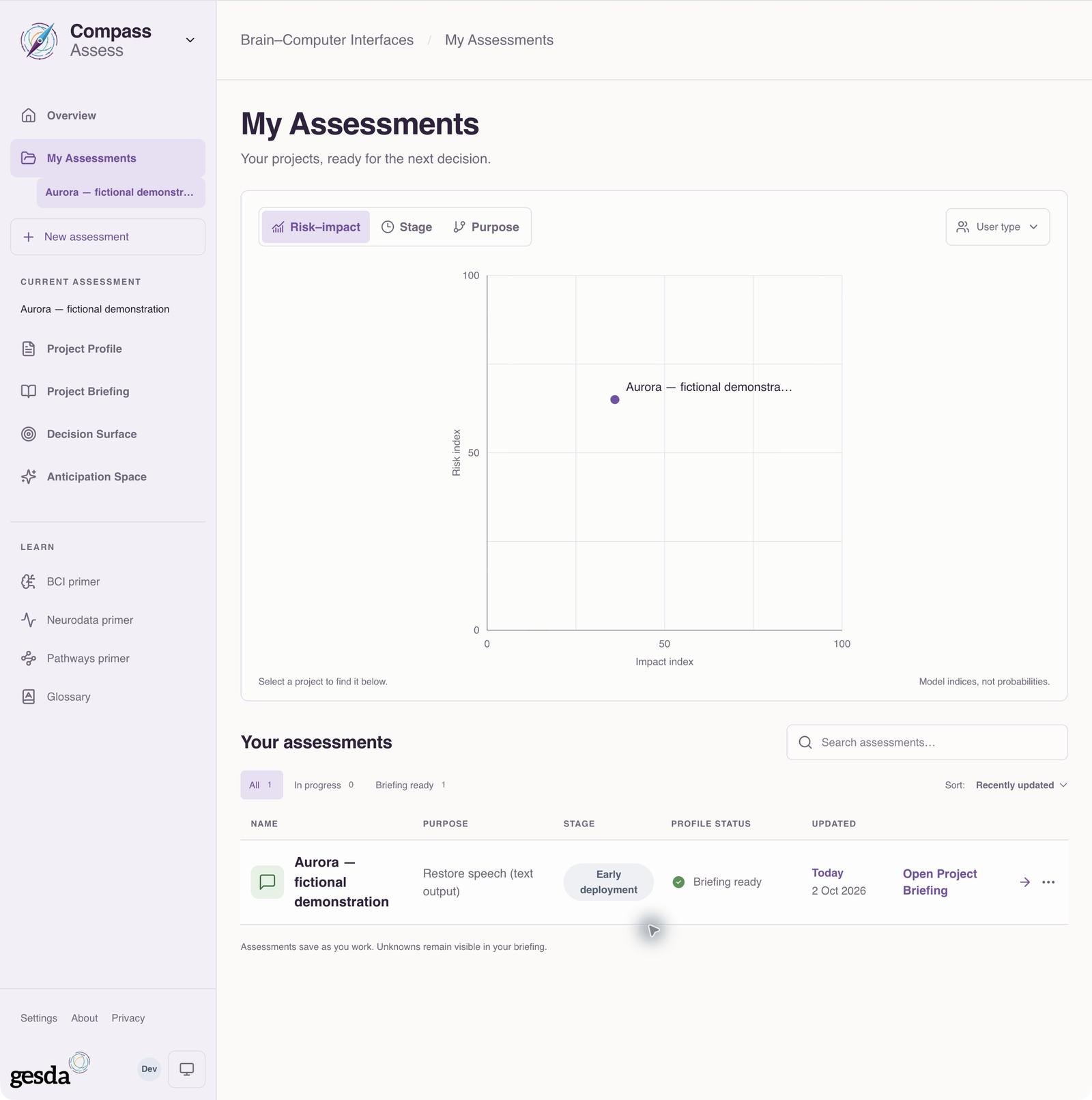
Local documentation capture, 2 October 2026. Fictional Aurora demonstration: inputs, evidence and outputs are illustrative. This is a separate example from the communication-at-home scenario in these guides. Complete Your project
Give the project a recognizable name and select the project or study context accurately. For research, choose the study’s progress accurately. A dataset analysis should not be described as a deployed interface simply to obtain a numerical result
Describe Purpose & people
Record the intended benefit, the people affected and the setting. Separate what is hoped for from what has been demonstrated. Review the cumulative picture to check that the project still describes the original purpose
Explain How it works and review the evidence
Describe the input, processing, interface and output. For a research study, use the data-source choices to distinguish existing recordings, new data collection and simulation. Add relevant technical evidence, impact, locations and lifecycle refinements where available. Confirm sourced facts, correct suggestions and leave material unknowns unresolved rather than inventing a value
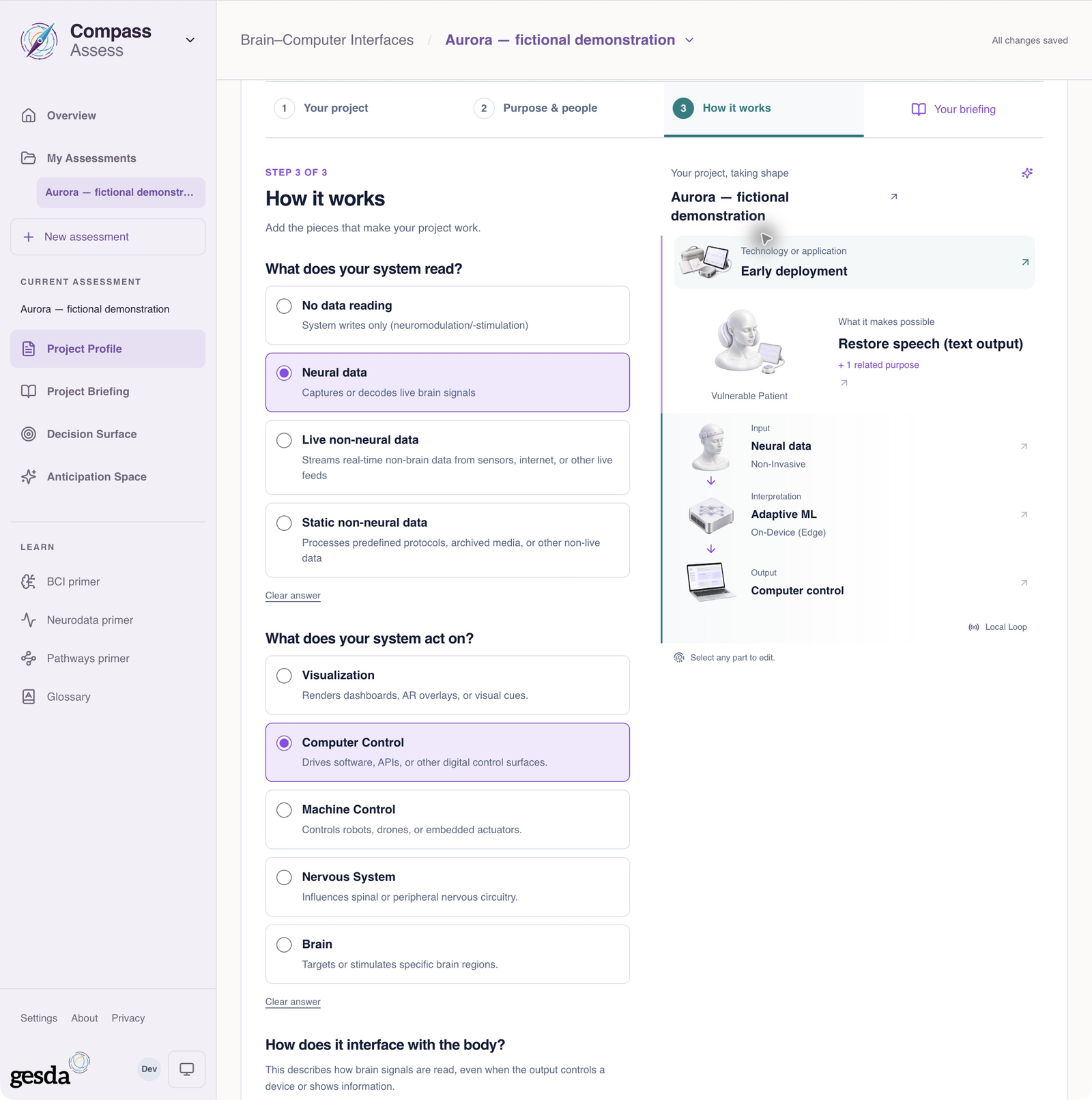
Local documentation capture, 2 October 2026. Fictional Aurora demonstration: inputs, evidence and outputs are illustrative. This is a separate example from the communication-at-home scenario in these guides. Save and read Project Briefing
Once a name, purpose, input and output are present and the project is saved, choose See your briefing. The assessment normally saves as you work; if a save is still needed or has failed, use Save assessment or Retry save when shown. Check that the descriptive briefing represents the intended project. If a statement is wrong, correct the underlying record. The briefing can be available before the full assessment is complete
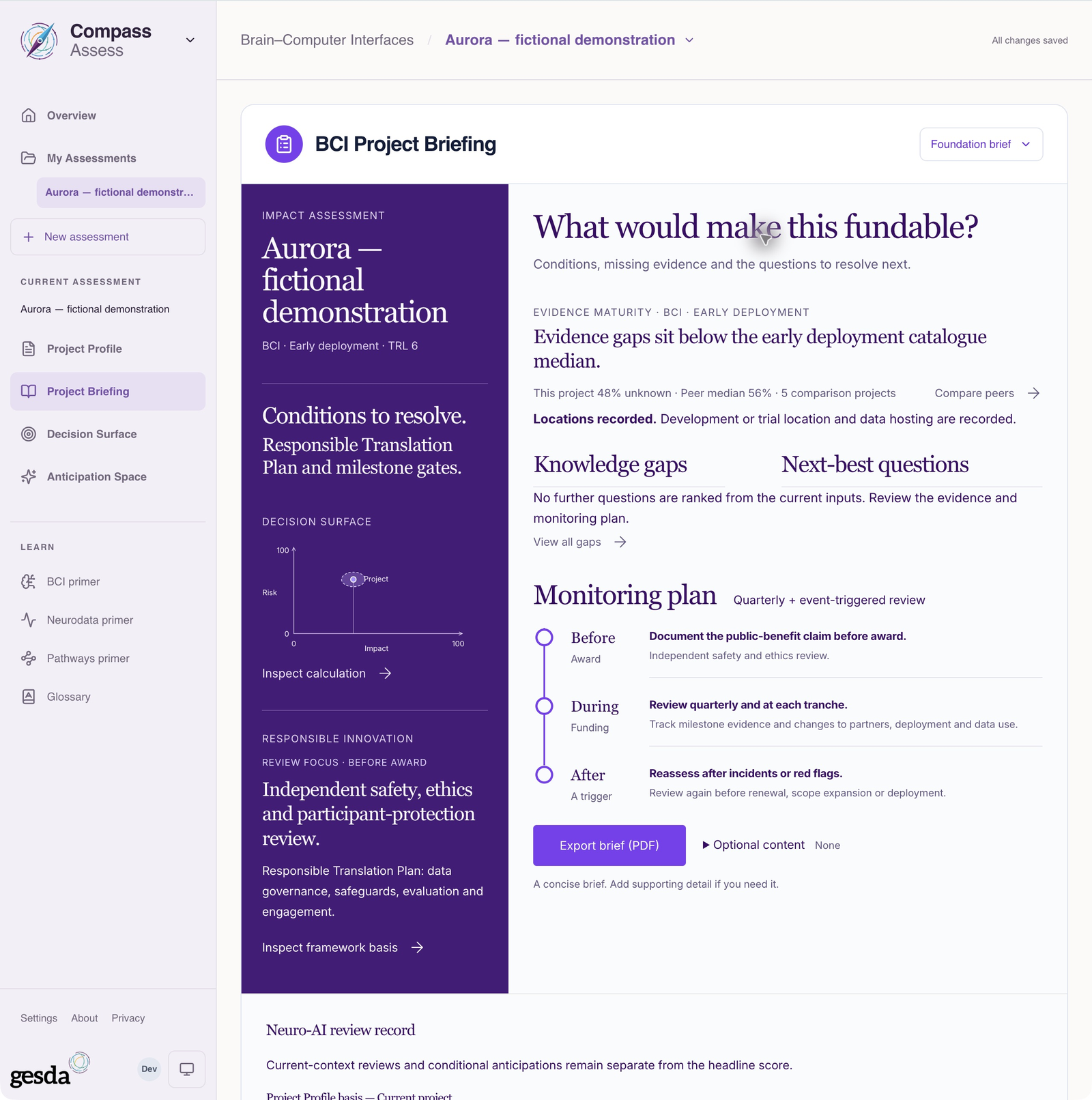
Local documentation capture, 2 October 2026. Fictional Aurora demonstration: inputs, evidence and outputs are illustrative. This is a separate example from the communication-at-home scenario in these guides. Inspect fuller reasoning when supported
When the required inputs are complete, review Decision Surface, evidence, pathways and open questions. Data-analysis and dataset studies receive a descriptive briefing but are outside the current numerical model. Do not interpret an unavailable result as a poor score or fill gaps merely to unlock it
Check the record before using it
You should have a saved assessment whose claims can be traced to sources or clearly identified assumptions, plus a list of unresolved questions. Confirm the correct record is selected and the saved information is visible when you reopen it
Next, interpret the evidence and uncertainty or prepare a Passport. Saving an assessment does not approve the project or automatically publish it to the public catalogue
About this guide edition
Reviewed 2 October 2026 against the current interface and maintained product guide. Screenshots show either the public GESDA catalogue or a local demonstration using fictional Aurora data, as identified in each caption
Local captures illustrate the interface, not sign-in, server persistence or successful export. Use Print / save PDF for a reading copy and follow the live application for current availability
Guide edition · 2 October 2026
Find a guide for your role